



How to Automatically Clean and Validate Data in Google Sheets Using Apps Script
Clean and validate data in Google Sheets using Google Apps Script. Remove duplicates, normalize entries, and automate error detection — perfect for NGOs, health programs, and analysts working with Forms, KoboToolbox, and KenyaEMR exports.

How to Automatically Clean and Validate Data in Google Sheets Using Apps Script
🚀 Introduction
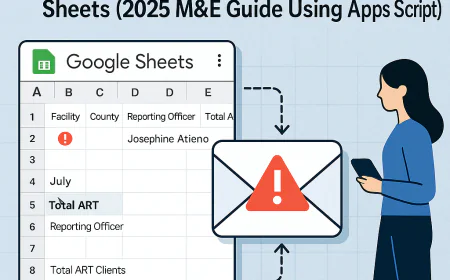
Cleaning and validating data in Google Sheets manually is time-consuming and error-prone. Whether you're a data analyst, NGO program officer, or health records information officer, your time should be spent on insight — not fixing typos.
This guide shows you how to use Google Apps Script to automatically clean, validate, and even alert users about errors in your Sheets. It's beginner-friendly and includes working scripts for real data.
🔍 Why Automate Data Cleaning?
Data from sources like KoboToolbox, Google Forms, or KenyaEMR exports often contains:
- Typos
- Duplicates
- Missing entries
- Wrong formats (e.g., "nairobi" instead of "Nairobi")
- Numbers as text or vice versa
If not cleaned automatically, these issues lead to wrong reports, incorrect analytics, and even misinformed policy decisions.
Automation = fewer errors, faster work, better insights.
🏛️ Real-World Use Case
Imagine you're managing a facility-level tracker of ART visits. Every row represents a patient. The raw sheet contains these issues:
| ID | Name | County | Age | Gender |
|---|---|---|---|---|
| 001 | john DOE | nairobi | 23 | M |
| 002 | JANE Smith | KISUMU | Female | |
| 001 | John Doe | Nairobi | 23 | Male |
| 003 | mark | kilifi | 17 |
Problems:
- Duplicate IDs
- Inconsistent name casing
- Inconsistent County casing
- Missing age and gender
- Gender mismatch ("M" vs "Male")
🔧 Step-by-Step: Build a Data Cleaner Script
✅ Step 1: Open Google Apps Script
- Open your Google Sheet.
- Click Extensions → Apps Script
- Rename the project to
DataCleaner.gs
✅ Step 2: Add This Script
function cleanAndValidateData() {
  const sheet = SpreadsheetApp.getActiveSpreadsheet().getActiveSheet();
  const data = sheet.getDataRange().getValues();
  const headers = data[0];
  const cleaned = [headers];
  const seenIDs = new Set();

  for (let i = 1; i < data.length; i++) {
    let row = data[i];
    let id = row[0].toString().trim();
    let name = toTitleCase(row[1]);
    let county = toTitleCase(row[2]);
    let age = row[3];
    let gender = normalizeGender(row[4]);

    if (!seenIDs.has(id)) {
      if (id && name && county && age && gender) {
        cleaned.push([id, name, county, age, gender]);
        seenIDs.add(id);
      }
    }
  }

  sheet.clear();
  sheet.getRange(1, 1, cleaned.length, cleaned[0].length).setValues(cleaned);
}

function toTitleCase(str) {
  return str ? str.toString().toLowerCase().replace(/\b\w/g, c => c.toUpperCase()) : "";
}

function normalizeGender(gender) {
  const g = gender.toString().toLowerCase();
  if (g === "m" || g === "male") return "Male";
  if (g === "f" || g === "female") return "Female";
  return "";
}
✅ Step 3: Run the Function
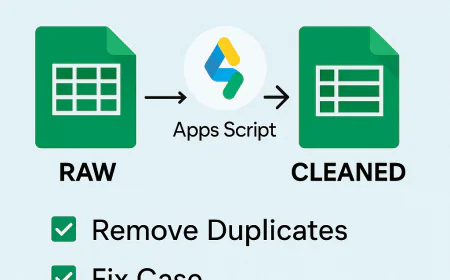
Click the ▶ Run button and allow permissions. The script will:
- Remove duplicate IDs
- Normalize text case (Names, County, Gender)
- Drop rows with missing required fields
✅ Optional: Add Custom Menu
function onOpen() {
  SpreadsheetApp.getUi()
    .createMenu("✨ Data Tools")
    .addItem("Clean Data", "cleanAndValidateData")
    .addToUi();
}
📊 Result: Before vs After
Before: (Raw)
john DOE | nairobi | M
JANE Smith | KISUMU | Female
After: (Cleaned)
John Doe | Nairobi | Male
Jane Smith | Kisumu | Female
📖 Summary
With just a few lines of Google Apps Script, you can:
- Eliminate duplicate rows
- Standardize case for names/counties
- Normalize inconsistent gender values
- Remove invalid entries
This saves hours of manual cleaning and ensures better reporting.
💬 Need Help?
Leave a comment below or contact us on WhatsApp. You can also follow our YouTube channel for tutorial videos.
What's Your Reaction?
 Like
0
Like
0
 Dislike
0
Dislike
0
 Love
0
Love
0
 Funny
0
Funny
0
 Angry
0
Angry
0
 Sad
0
Sad
0
 Wow
0
Wow
0